Getting started
Start with the Blog template for a ready-to-customize site, or build a minimal blog from
scratch. Both require the .NET 10 SDK
or later; run dotnet --version to check.
Start from a template
Install Kiji.Templates and create a site with the Blog template:
dotnet new install Kiji.Templates
dotnet new kiji-blog -o MyBlog
cd MyBlog
In Program.cs, set the site name, description, language, and author in SiteInfo, and
set BaseUrl to your public URL. Then start the development server and open
http://localhost:8080, adding the path from BaseUrl if it has one, such as /blog/:
dotnet watch
The template includes dated Markdown posts, a post list, About and Policy pages, shared styles, syntax highlighting, and RSS.
- Posts live in
content/posts/<slug>/index.mdwithtitle,description, anddatefront matter. Copy a post's directory to add another; the directory name is its slug. - General pages live in
content/pages/. - Components are in
Pages/,Layout/, andComponents/; styles are inwwwroot/css/app.css.
Stop the server with Ctrl+C, run dotnet publish, and upload the contents of dist/
to your static host. See Deployment.
Build from scratch
This walkthrough builds the core of the Blog template: a home page listing dated Markdown posts, a page for each post, and a shared layout and stylesheet. It assumes you know the basics of Razor components. Razor and C# blocks show complete files; highlighted lines mark changes.
Create the project
Create a console project and add Kiji:
dotnet new console -o MySite
cd MySite
dotnet add package Kiji
Open MySite.csproj and change its first line to use the Razor SDK:
<Project Sdk="Microsoft.NET.Sdk.Razor">
In its <PropertyGroup>, add these settings:
<UseCurrentRuntimeIdentifier>true</UseCurrentRuntimeIdentifier>
<DefaultItemExcludes>$(DefaultItemExcludes);content/**</DefaultItemExcludes>
- Without
UseCurrentRuntimeIdentifier, every build copies Kiji's native image library for every platform intobin/, several hundred megabytes in total. DefaultItemExcludeskeeps the SDK from scanningcontent/, where the posts will live. Kiji loads and watches them itself; without it, builds anddotnet watchslow down as posts accumulate. The SDK no longer compiles files there, so keep components outside.
Build the smallest site
Replace Program.cs with the site definition:
using Kiji;

var app = StaticSite.Create(args);
app.Info = new SiteInfo
{
    BaseUrl = new Uri("https://example.com/"),
    Name = "My Site",
};

return await app.RunAsync();
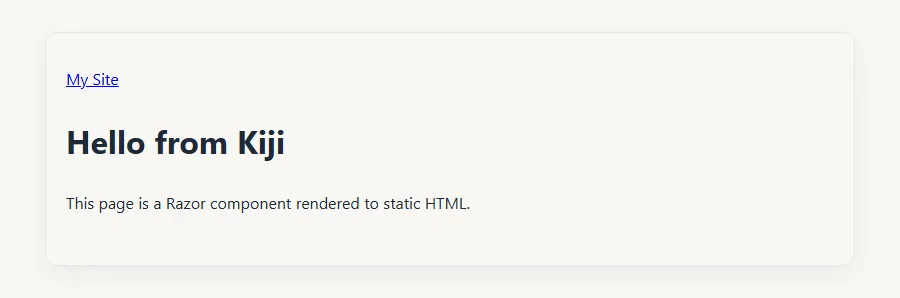
Create Pages/Home.razor:
@page "/"

<h1>Hello from Kiji</h1>
<p>This page is a Razor component rendered to static HTML.</p>
Kiji finds components with @page routes automatically. Start the development server
and open http://localhost:8080:
dotnet watch

The browser reloads when you change a component or content file. Changes to Program.cs
apply only after a restart: press Ctrl+R in the dotnet watch terminal.
Add a layout and CSS
Files under wwwroot/ are static assets. Create wwwroot/css/app.css:
body {
  max-width: 48rem;
  margin: 2rem auto;
  padding: 2rem 1.25rem;
  font-family: "Segoe UI", system-ui, sans-serif;
  line-height: 1.7;
  color: #1f2937;
  background: #f8f7f3;
  border: 1px solid #e5e7eb;
  border-radius: 0.75rem;
  box-shadow: 0 8px 24px rgba(15, 23, 42, 0.05);
}
Create Components/PageHead.razor for the page title and shared head tags:
@using Kiji
@using Microsoft.AspNetCore.Components.Web
@inject SiteInfo Site

<PageTitle>@Title - @Site.Name</PageTitle>

<HeadContent>
    <meta charset="utf-8" />
    <meta name="viewport" content="width=device-width, initial-scale=1.0" />
    <link rel="stylesheet" href="@Assets["css/app.css"]" />
    @ChildContent
</HeadContent>

@code {
    [Parameter] public string Title { get; set; } = string.Empty;
    [Parameter] public RenderFragment? ChildContent { get; set; }
}
Create Layout/MainLayout.razor for the shared page structure:
@using Kiji
@inherits LayoutComponentBase
@inject SiteInfo Site

<header>
    <a href="@Site.BaseUrl.AbsolutePath">@Site.Name</a>
</header>

<main>
    @Body
</main>
Update Program.cs to import the layout namespace and register the layout:
using Kiji;
using MySite.Layout;

var app = StaticSite.Create(args);
app.Info = new SiteInfo
{
    BaseUrl = new Uri("https://example.com/"),
    Name = "My Site",
};

app.UseDefaultLayout<MainLayout>();

return await app.RunAsync();
Add PageHead to Pages/Home.razor:
@page "/"
@using MySite.Components

<PageHead Title="Home" />

<h1>Hello from Kiji</h1>
<p>This page is a Razor component rendered to static HTML.</p>
Use PageHead once in each page, and put page-specific tags between <PageHead> and
</PageHead>. A separate HeadContent in a page would replace these shared tags.
Restart dotnet watch with Ctrl+R to apply the Program.cs change.
This walkthrough adds @using directives to each file. To share them, put them in
_Imports.razor at the project root, as the rest of this documentation assumes.
Add a Markdown page
Create Models/PostFrontMatter.cs to define the YAML fields your posts use:
namespace MySite.Models;

public sealed class PostFrontMatter
{
    public string Title { get; set; } = string.Empty;
    public string Description { get; set; } = string.Empty;
    public DateTimeOffset? Date { get; set; }
}
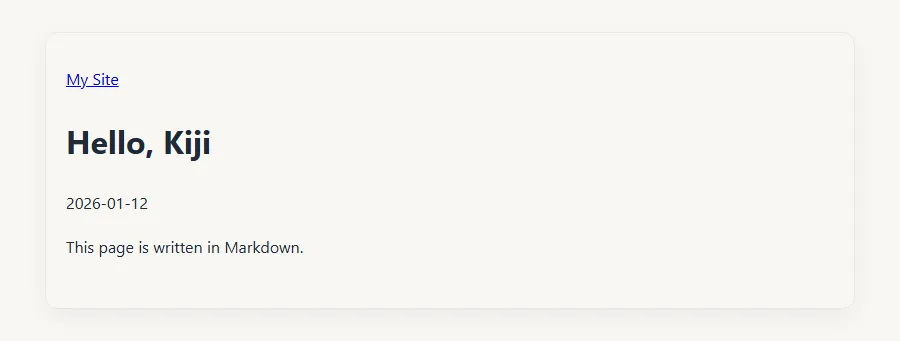
Create content/posts/hello-kiji/index.md:
---
title: Hello, Kiji
description: The first post on my site.
date: 2026-01-12T09:00:00Z
---

This page is written in Markdown.
Create Models/BlogPost.cs to represent a post. It uses the post's directory name as its
slug, requires a title and date, and keeps the Markdown content for rendering:
using Kiji.Markdown;

namespace MySite.Models;

public sealed record BlogPost(
    string Slug, string Title, string Description, DateTimeOffset Date,
    MarkdownContent<PostFrontMatter> Content)
{
    public string RelativePath => $"posts/{Uri.EscapeDataString(Slug)}/";

    public static BlogPost Create(MarkdownContent<PostFrontMatter> content)
    {
        if (string.IsNullOrWhiteSpace(content.FrontMatter.Title) || content.FrontMatter.Date is null)
        {
            throw new InvalidOperationException($"{content.FileInfo.FullName}: posts require a title and date.");
        }

        return new BlogPost(content.FileInfo.Directory!.Name,
            content.FrontMatter.Title, content.FrontMatter.Description,
            content.FrontMatter.Date.Value, content);
    }
}
Create Pages/PostPage.razor. Slug supplies the route value, and ContentKey tells the
component which Markdown item to render:
@page "/posts/{Slug}/"
@using Kiji
@using MySite.Components
@using MySite.Models
@inject ContentDictionary<BlogPost> Posts

@if (_post is not null)
{
    <PageHead Title="@_post.Title">
        <meta name="description" content="@_post.Description" />
    </PageHead>

    <article>
        <h1>@_post.Title</h1>
        <time datetime="@_post.Date.ToString("yyyy-MM-dd")">@_post.Date.ToString("yyyy-MM-dd")</time>
        <div>@((MarkupString)_html)</div>
    </article>
}

@code {
    [Parameter] public string Slug { get; set; } = string.Empty;
    [Parameter] public string ContentKey { get; set; } = string.Empty;

    private BlogPost? _post;
    private string _html = string.Empty;

    protected override async Task OnParametersSetAsync()
    {
        _post = Posts[ContentKey];
        _html = await _post.Content.RenderAsync();
    }
}
Add the required namespaces and registrations to Program.cs:
using Kiji;
using Kiji.Markdown;
using Microsoft.Extensions.DependencyInjection;
using MySite.Layout;
using MySite.Models;
using MySite.Pages;

var app = StaticSite.Create(args);
app.Info = new SiteInfo
{
    BaseUrl = new Uri("https://example.com/"),
    Name = "My Site",
};

app.UseMarkdownContent<PostFrontMatter, BlogPost>(BlogPost.Create,
    options => options.Directory = "content/posts");
app.UseDefaultLayout<MainLayout>();
app.AddPageParameters<PostPage>(services => services
    .GetRequiredService<ContentDictionary<BlogPost>>()
    .Select(post => new { post.Value.Slug, ContentKey = post.Key }));

return await app.RunAsync();
UseMarkdownContent calls BlogPost.Create for each Markdown file and registers
ContentDictionary<BlogPost>. AddPageParameters gives each post's page its Slug for
the URL and its dictionary key as ContentKey.
Restart dotnet watch and open http://localhost:8080/posts/hello-kiji/:
List the posts
Replace Pages/Home.razor with a list of posts, newest first:
@page "/"
@using Kiji
@using MySite.Components
@using MySite.Models
@inject SiteInfo Site
@inject ContentDictionary<BlogPost> Posts

<PageHead Title="Home" />

<h1>@Site.Name</h1>
<ul>
    @foreach (var post in Posts.Values.OrderByDescending(post => post.Date))
    {
        <li>
            <time datetime="@post.Date.ToString("yyyy-MM-dd")">@post.Date.ToString("yyyy-MM-dd")</time>
            <a href="@Site.ResolveUrl(post.RelativePath).AbsolutePath">@post.Title</a>
        </li>
    }
</ul>
Return to http://localhost:8080 to see the list:
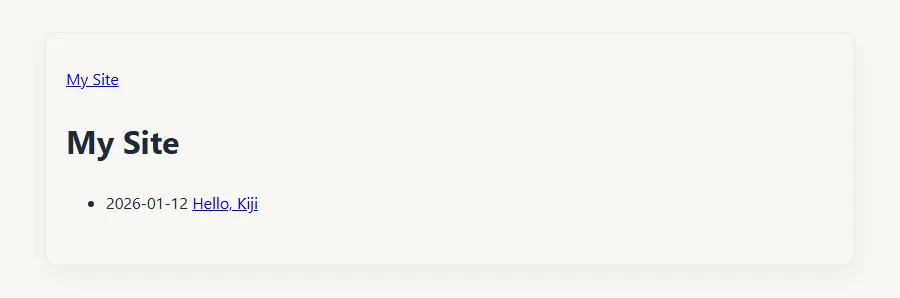
To add a post, create another directory such as content/posts/second-post/ with an
index.md. It appears in the list and at /posts/second-post/.
Publish the site
Stop the development server and publish:
dotnet publish
dist/ now contains the generated HTML and css/app.css, ready for any static host.
Later publishes reuse unchanged pages; see Incremental builds.
Add .kiji/ and dist/ to .gitignore. Continue with Concepts,
Routing, or Deployment. If something does not work, see
Troubleshooting.